
Client approvals
Approving posts as a client
A guide for clients: how to open your portal, review posts, approve them or ask for changes. Share it with the people who approve your posts.
Your agency uses Koda to send you posts for sign-off. This page is for you, the client. It covers everything you need to review and approve.
Getting in
Your agency gives you one of two ways in:
- A login. You get an email from Koda with an Accept invitation button. Set your password, then sign in any time. Your accounts lists every account you can open, including ones from other agencies.
- A link. Tap the link your agency sent and you're straight in, no password needed.
You only see what your agency has chosen to share.
Your approvals list
When you open an account you land on Approvals. Posts are sorted into four tabs:
- Awaiting approval: posts waiting for your decision
- Feedback: posts where you've asked for changes
- Approved: posts you've signed off
- Posted: posts that have gone live
Each row shows the post's title, its date and where it's going. Use the date filter, which starts on Last 7 days, to look further back.
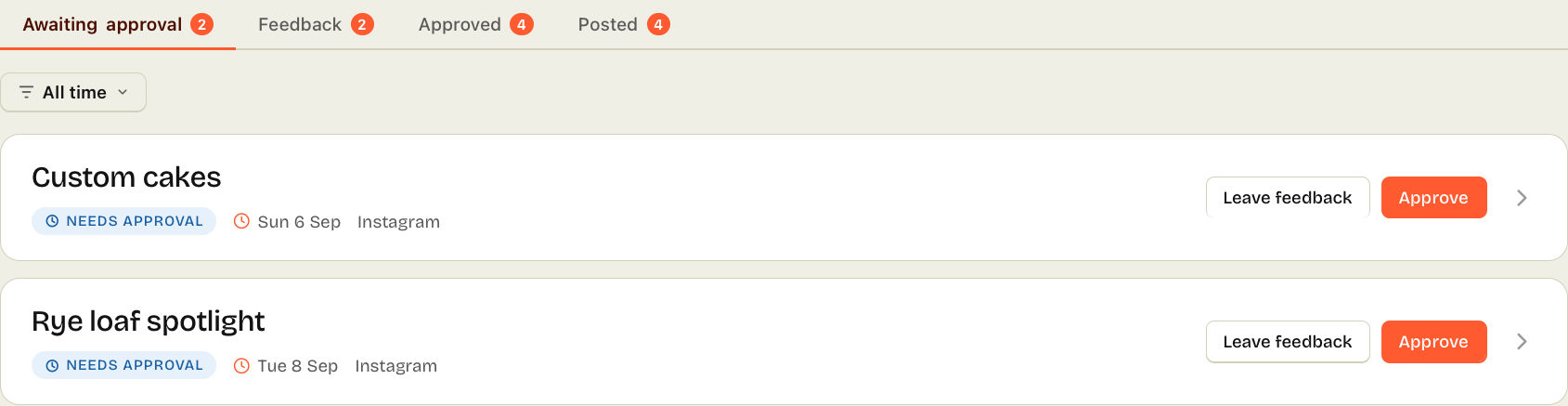
Review and approve a post
- Click a post to open it. You'll see the media, caption, hashtags, when it's going out and where.
- If it looks right, click Approve.
You can also click Approve straight from the row in Awaiting approval.
Once you approve, your agency takes it from there. In most cases the post is scheduled to go out at the time shown.
Ask for changes
- Click Leave feedback.
- Type what you'd like changed and click Send.
The post moves to your Feedback tab and your agency is told. They'll reply in the same thread. If you have a login, Koda emails you when they do. Once they've made changes, the post comes back to Awaiting approval.
On a video, your note is pinned to the moment you paused on, so pause where you want the change before you write.
Change your mind
- To take back an approval, open the post and click Unapprove. It goes back to awaiting your approval.
- If you've approved a post and then spot something, click Leave feedback on it. This takes the approval back so nothing goes out until it's fixed.
- You can edit or delete your own messages in the thread.
If your agency lets you edit
Your agency might also let you:
- edit a post's caption and hashtags, with the Edit link next to the caption
- send them photos and clips from the Media tab
- see and fill in shoot plans and moodboards
If you have a login, you can change your name, photo and password from Profile on the Your accounts page.
Next steps
Still stuck? Email [email protected] and we'll help.