
Client approvals
Client feedback and video notes
How your client leaves feedback on a post, how timestamped video notes work, and how you reply, resend or mark changes as addressed.
Every post sent for approval has a feedback thread. Your client writes there when they want changes, and you reply in the same place. On videos, their notes are pinned to the exact moment they paused on.
How your client leaves feedback
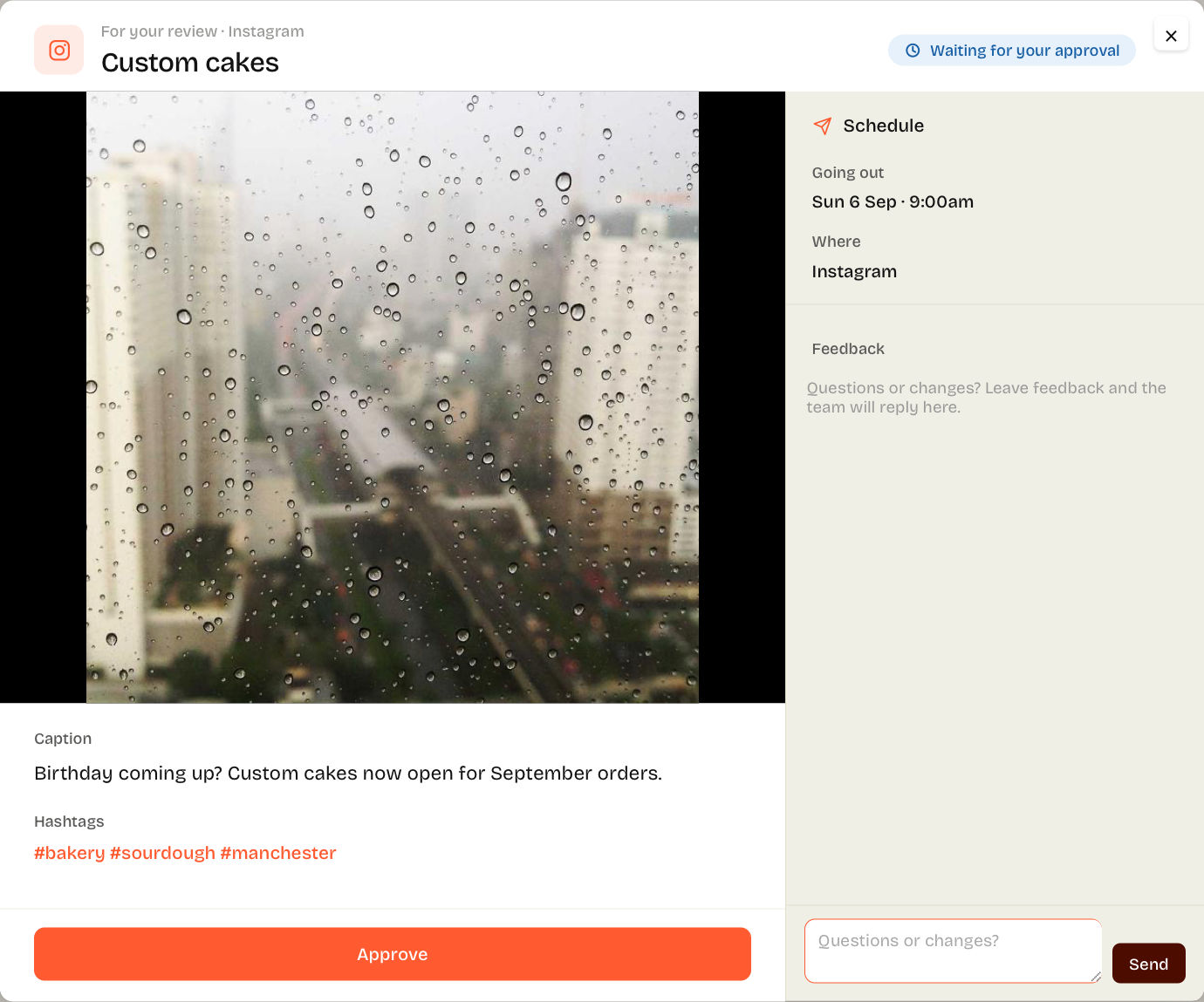
Your client clicks Leave feedback, either on the post or on its row in their Approvals list. They type a message under Feedback in the post view and click Send.
Feedback on a post that's awaiting approval changes it to Changes requested and stops it publishing. Your team gets the "Changes requested" email if that rule is on in Notifications. It's on by default.
If your client deletes their only message, the post goes back to awaiting approval.
Video notes
On a post with a single video, your client gets a player with a scrubber. When they leave feedback, the note is pinned to the frame they're paused on, shown as "Pinned to this frame" with the timestamp.
- Each pinned note shows as a marker on the scrubber. Hovering shows who said what, and clicking jumps to that moment.
- Clicking a note in the thread jumps the video to its moment.
- While the video plays, the note for the current moment is highlighted.
In your composer, pinned notes show a timestamp chip. Click it to jump your preview to that frame.
Reply to your client
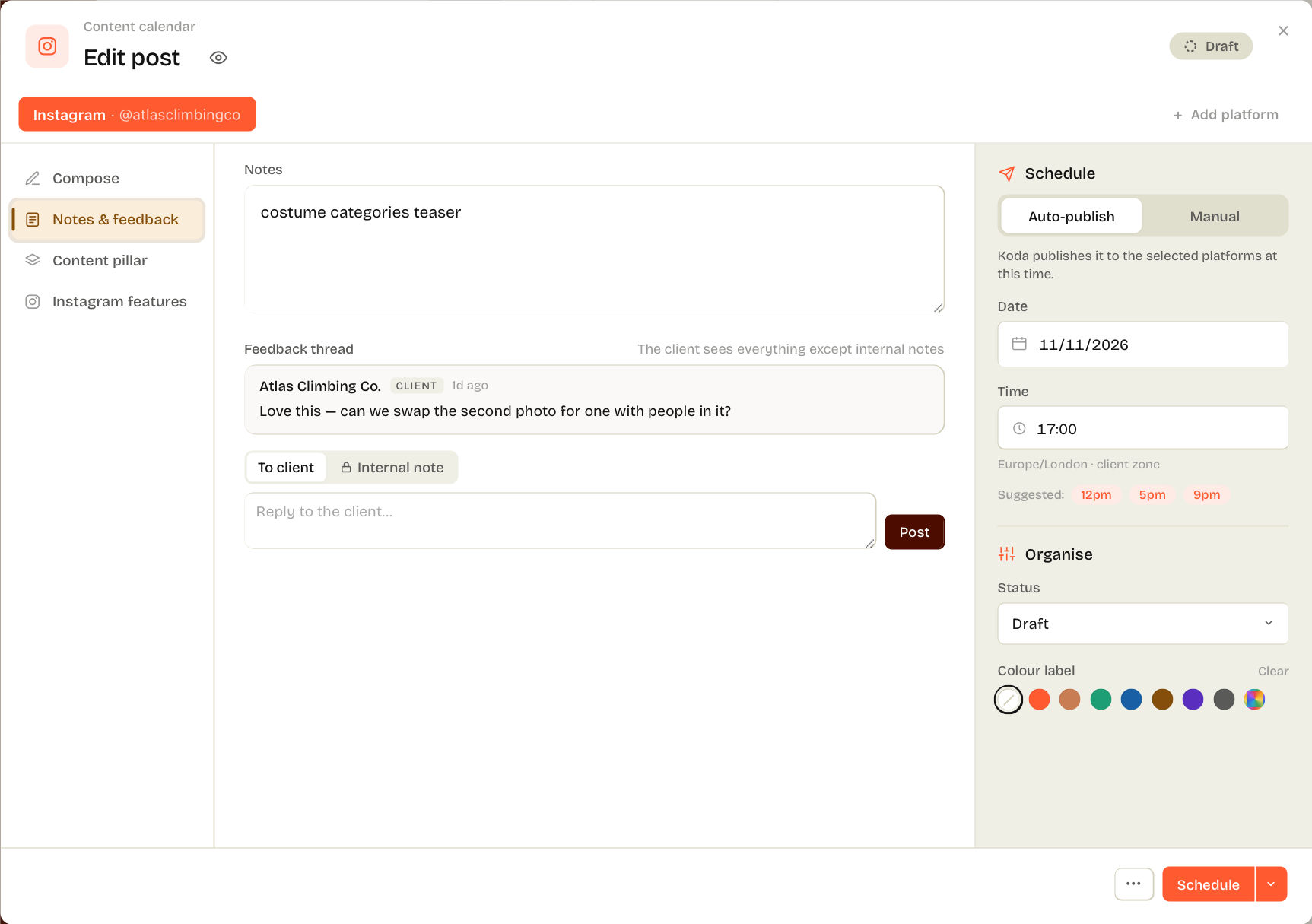
Open the post and go to Notes & feedback in the composer. The Feedback thread shows your client's messages, your replies and internal notes. Choose who your message is for:
- To client: your client sees it.
- Internal note: only your team sees it, marked with a lock.
When your client has the last word, Notes & feedback is highlighted so you know a reply is waiting.
Act on a change request
The latest request shows as a Changes requested card at the top of the composer, with who asked and when.
- Mark as addressed & resend sends the post back for approval.
- Mark as addressed clears the request without resending. The post goes back to draft and nobody is emailed. The request stays on the post as Changes addressed, and Unmark as addressed puts it back.
- Reply jumps to the thread.
When you resend a post that has a conversation, the thread shows "New version sent" so your client can tell the rounds apart. You can also resend from Re-submit in the ⋯ menu.
Feedback on an approved post
Your client can still click Leave feedback on a post they've approved. Sending it takes the approval back and stops it publishing, so the post returns to Changes requested.
The Changes requested card on your Dashboard lists posts with feedback waiting across all your clients.
Next steps
Still stuck? Email [email protected] and we'll help.