
Content creation
Media library
Keep each client's photos, videos and PDFs in folders, use them in posts, download originals and understand storage limits.
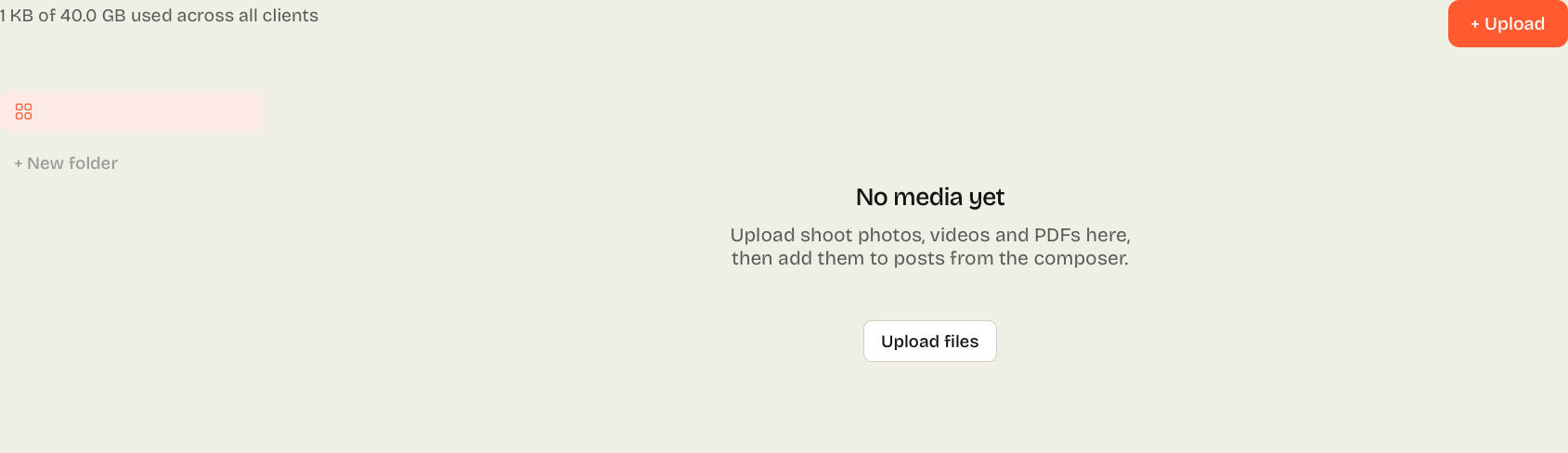
Every client has a media library for shoot photos, videos and PDFs. Upload once, then add the files to posts from the composer without uploading again. Open Media (under Create in the client sidebar).
Upload files
- Open the folder you want the files in, or stay at the top level.
- Click + Upload and pick one or more files.
- Each file shows its progress, then Saved (or Failed, with a message saying why).
You can upload JPG, PNG, WebP and GIF images, MP4 and MOV videos, and PDFs. Photos are resized to a maximum of 2048 pixels on the long edge as they upload. Videos upload one at a time, other files three at a time.
| Limit | Size |
|---|---|
| Per photo or video | 500MB |
| Per PDF | 100MB |
Folders
- + New folder in the left-hand list creates a folder. Open a folder and click New sub-folder to nest one inside it.
- The ⋯ button on an open folder lets you Rename it or Delete folder. Deleting a folder doesn't delete its files. They move back to All media, and any sub-folders move to the top level.
- To move a file, click the folder icon on its card and pick a destination.
- The grid icon at the top of the list takes you back to the top level.
When a client sends you files through their portal, they land in a folder called From the client, and each card says who sent it.
Use files in posts
In the post composer, click or choose from library (or Add from library when building a carousel). The picker groups files by folder. Library photos are checked against Instagram's size ratios and the crop step opens if one doesn't fit. PDFs only show for LinkedIn-only posts, where they're posted as a document. See create a post.
Each card shows how many posts use the file. You can't delete a file while a post uses it. Remove it from those posts first.
Preview and download
Click a photo or video to view it full size. PDFs open in your browser's own viewer. Koda also makes a streaming copy of each video in the background, so cards get a still frame and playback stays smooth. Some raw camera files can't play in a browser at all, but still get a frame once that copy is ready.
The download button on each card saves the original file. On a phone it opens the share sheet so you can save to Photos. If the file is large, you may need to tap the button a second time.
Storage
The line at the top of the tab shows how much of your organisation's storage is used, across all clients. You get 10GB per client, with a minimum of 10GB. Library files stay until you delete them, even after the posts that use them have published. See storage to find and clear large files.
Still stuck? Email [email protected] and we'll help.