
Getting started
Finding your way around
How the sidebar works in Koda: the workspace view, a client's workspace, the client switcher, and collapsing the sidebar.
Koda has two modes. The workspace view covers everything across your organisation. When you open a client, the sidebar switches to that client's tools.
The workspace sidebar
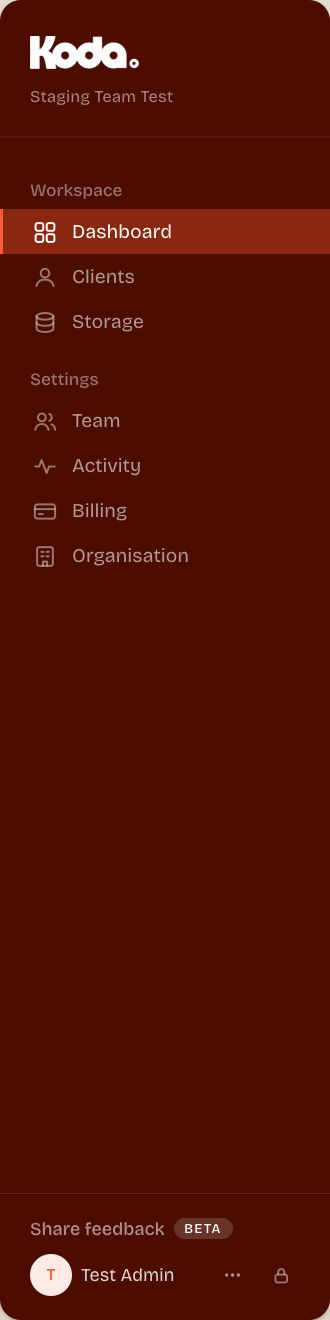
This is what you see when you sign in.
- Workspace: Dashboard (today across every client), Clients (your full client list) and Storage (every file you're storing).
- Settings: Team, Activity, Billing and Organisation. These are only shown to admins.
If someone in another Koda organisation has shared a client with you, it appears under Shared with me.
On the Clients page, use the menu on each client card to Favourite a client or Add to group. Favourites and groups show as their own sections at the top of the list.
A client's workspace
Click any client to open their workspace. The sidebar groups their tools into five sections:
| Section | What's in it |
|---|---|
| Daily | Overview, Inbox, Calendar, Feed preview, Scheduler |
| Create | Content creation (Shoot plans, Captions, Ideas, Moodboard), Media |
| Insight | Analytics, Competitors, Listening |
| Reference | Meeting notes, Tasks |
| Setup | Profile, Brand, Integrations, Notifications |
Click the home icon at the top of the client sidebar to go back to your client list.
Switch clients
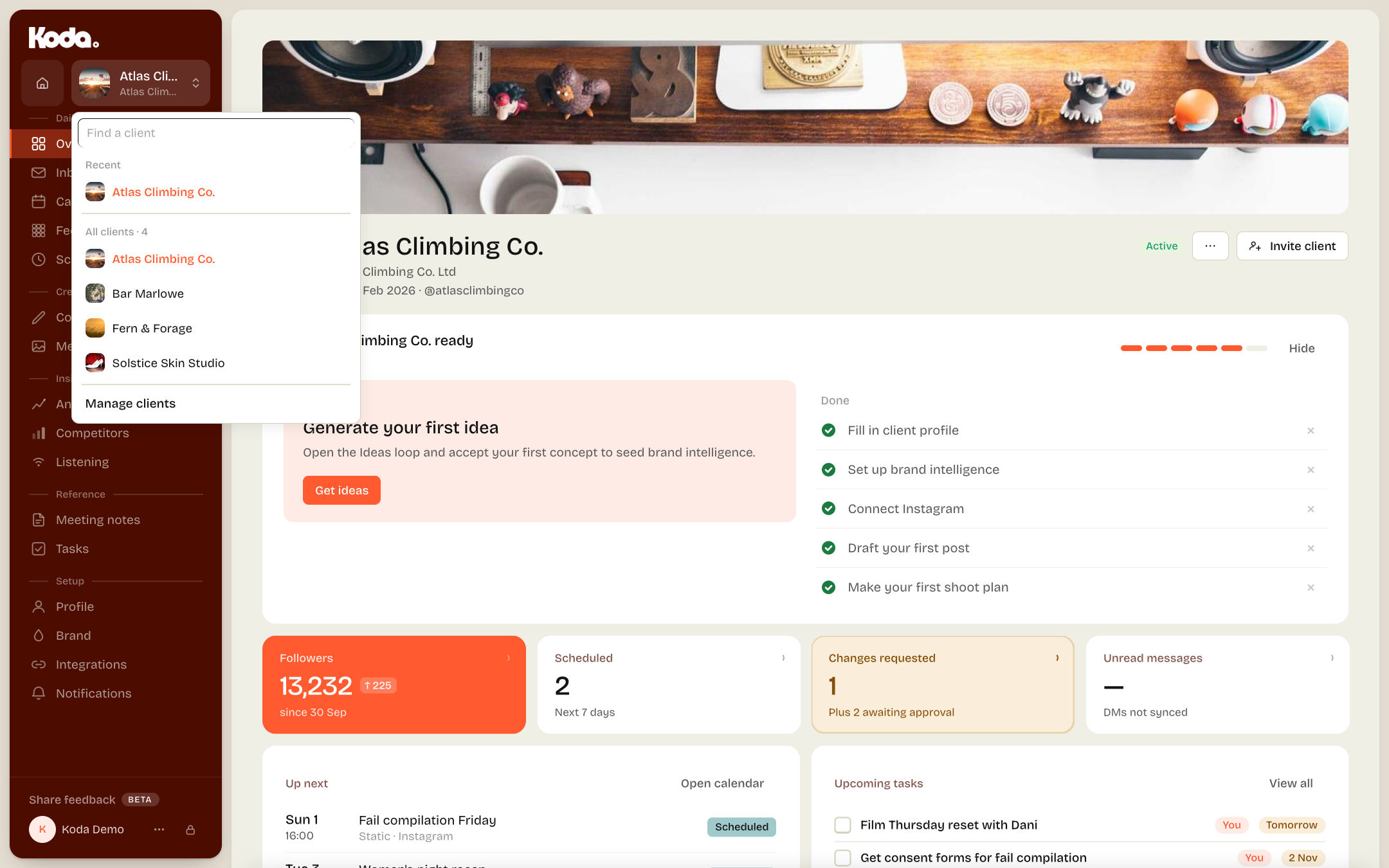
The client's name and photo sit at the top of the client sidebar. Click it to open the client switcher:
- Type in Find a client to search. Use the arrow keys and Enter to open a match.
- Recent lists the last three clients you opened, then All clients lists everyone A to Z.
- Paused and churned clients are folded away under Paused and churned.
- A red number shows unread inbox messages for that client.
- Manage clients takes you to your client list, and Add client starts the add-client wizard.
Collapse the sidebar
Click the lock icon in the bottom corner of the sidebar to shrink it to an icon rail. Hover over the rail to expand it for a moment, and click the lock again to keep it open. Koda remembers your choice on that device.
Your account and feedback
At the bottom of the sidebar:
- Click your name to open your account settings.
- The three-dot menu next to your name has Account settings, Show tour (when you're in a client) and Sign out.
- Share feedback sends a note straight to the Koda team.
On a phone
On a small screen, the sidebar is hidden behind the menu button in the top bar. Inside a client, a Home button in the top bar takes you back to your workspace.
Still stuck? Email [email protected] and we'll help.