
Insights
Competitors
Track a client's Instagram competitors and rival Facebook Pages, compare engagement in a ranked benchmark, and get an AI overview of the competitive landscape.
Competitors (under Insight in the client sidebar) lets you follow the accounts your client is up against and see how they compare. It works from public profile data, so you can track any public Instagram account or Facebook Page.
Add an Instagram competitor
- Open Competitors.
- Type the account's handle in the box (without the @) and click Add competitor.
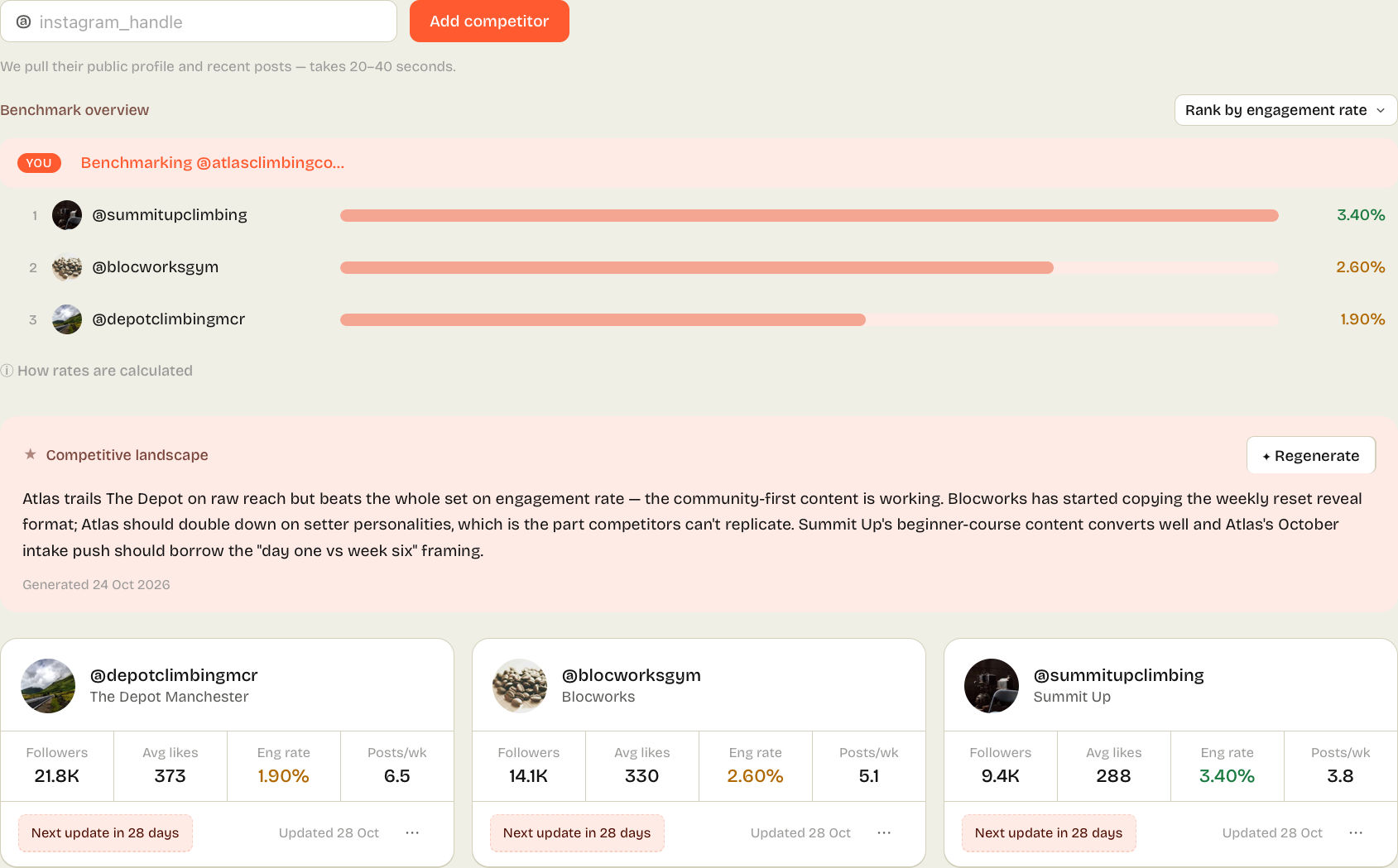
Koda pulls their public profile and recent posts, which takes 20 to 40 seconds. Private accounts can't be tracked. You can track up to 10 competitors per client.
Koda also benchmarks the client's own account automatically, using the handle saved in the Instagram field of their profile. It shows as You in the benchmark.
The benchmark overview
Benchmark overview ranks every tracked account, with the client highlighted. Click Rank by engagement rate to switch the ranking to followers, average likes, average comments or posts per week.
Engagement rate here is average likes and comments per post divided by followers, from public data over the last 180 days, with collab posts included. Instagram analytics uses the same figure, so the two screens agree. Click How rates are calculated for a reminder.
The same data also appears as Engagement rate vs competitors and Format mix vs competitors charts in Instagram analytics, and feeds the brand intelligence review there.
Competitor cards and details
Each card shows Followers, Avg likes, Eng rate, Posts/wk and their most used hashtags. Click a card, or a row in the benchmark, to open the full details: stats you can filter to All time, Last 30 days or Last 7 days, their bio, top performing posts and top hashtags. Click Generate under Brand intelligence for an AI summary of that account.
Competitor data is updated once every 30 days. When it's due, the card shows Update; until then it says when the next update is available. To stop tracking an account, open the ⋯ menu on its card and choose Remove competitor.
Competitive landscape overview
Once you've added competitors, click Generate overview. Claude reads every tracked account and writes a short overview of who's growing, what content is winning, and where the gap is for your client. Staff can regenerate it once a day per client. Admins can regenerate it at any time.
Facebook Pages
If the client has a Facebook Page connected, a Facebook tab appears next to Instagram.
- Search for a business Page by name and click Search.
- Click Track next to the right result. The client's own Page is labelled Your Page.
Facebook competitors show the Page's public Likes and Followers. Click Refresh to update them, or choose Remove Page from the ⋯ menu. You can track up to 10 Pages per client.
Still stuck? Email [email protected] and we'll help.