
Team and account
Storage
How much media storage your organisation has, what uses it, what Koda clears automatically, and how to free space from the Storage page.
Every photo, video and file you upload to Koda is stored so it can be published, previewed and shared. Your organisation has one storage allowance, shared by all your clients.
How much storage you have
You get 10 GB for every client in your organisation, with a minimum of 10 GB. An organisation with four clients has 40 GB.
You can see your usage in three places:
- The Storage page in the workspace sidebar.
- The top of a client's Media tab, which shows what's used across all clients.
- The Scheduler tab (under Daily in the client sidebar), which has Manage storage and Clean up unused media buttons.
If an upload would take you over the limit, Koda stops it and asks you to free up space first.
What Koda clears for you
You don't need to tidy up after every post. Koda frees space automatically:
- Published posts: the media is deleted seven days after a post publishes. The post keeps a small thumbnail so your calendar still looks right, and its caption and stats stay.
- Unattached uploads: files you uploaded but never saved to anything are removed after a couple of hours.
- Deleted posts: a deleted post can be restored for 30 days, so its files are kept until then and deleted after.
- Deleted clients: all of the client's files are deleted with them, including their library, post media, moodboard uploads and task attachments.
Files in a client's Media library are never cleared automatically. They stay until you delete them, so the library is usually where most of your storage goes.
The Storage page
Open Storage in the workspace sidebar to see every stored file across your clients, largest first. The bar at the top shows how much you've used and how much can be freed.
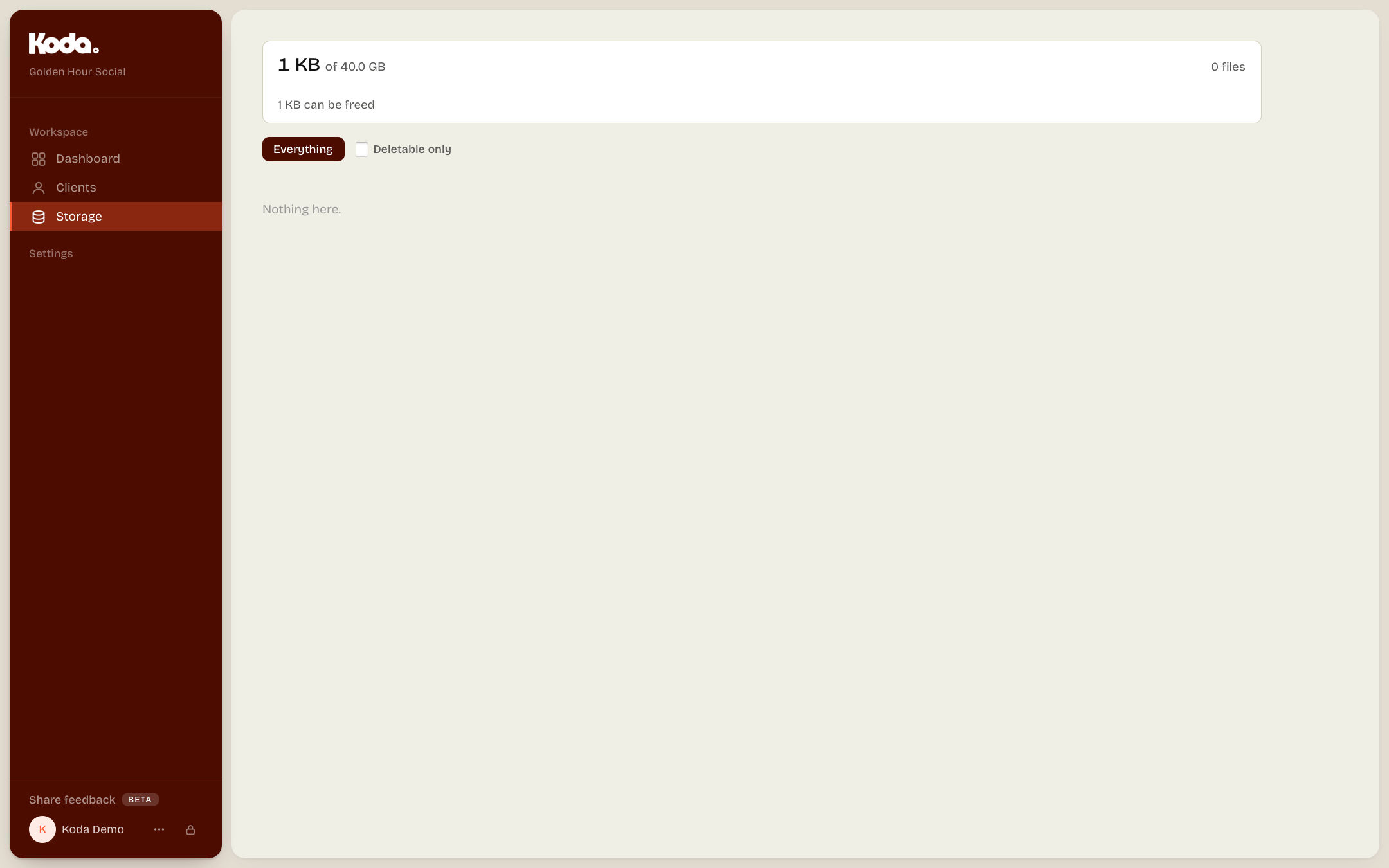
- Use the chips to filter by Library, Posts, Moodboards, Shoot plans, Tasks or Unattached.
- Tick Deletable only to hide anything that can't be deleted from here.
- Pick a client from All clients to see just theirs.
Click a file to preview it full size. Use the arrow keys to move through the grid and the space bar to select, with a running total of what your selection frees. The preview also links to the posts or moodboards that use the file.
Free up space
- Tick the files you want to remove, or select them from the preview.
- Check the total in the bar at the bottom of the page.
- Click Delete selected and confirm.
Deleting is permanent. Published posts keep their caption and stats, and only the stored file goes.
Files with a lock icon can't be deleted here because something still needs them: a post that hasn't published yet, a deleted post that can still be restored (for 30 days), a task, a moodboard or a shoot plan. Remove the file where it's used instead.
Upload size limits
Videos over 500MB can only be published to YouTube, which accepts files up to 2GB. For other platforms, export a smaller file.
Still stuck? Email [email protected] and we'll help.