
Content creation
Shoot plans
Plan a shoot day as one page: videos in running order, timings, plan notes, AI-filled briefs, comments and sharing with your client.
A shoot plan is one page per shoot. It holds the videos you'll film, in running order, with timings that add up to a shoot day, plus notes like a brief, a kit list or crew contacts. Open it from Content creation > Shoot plans (under Create in the client sidebar).
Create a plan
- Click + New shoot plan.
- Give it a Plan title. Shoot date and Start time are optional.
- Click Create plan. The plan opens with the Add panel ready.
From Add, pick a video type under Add a video (Simple video, Production video, or any template your team has made), or add a plan note under Add to the plan: Text, List, Table, Links, Images or Files.
Fill in a video
Click a video in the Running order to open it in the side panel. Every video has a Title, Shoot time, Length, Platform, Status (Idea, Draft or Ready to shoot) and Template. The template decides the rest of the blocks, such as Idea, Script, Shot list and Caption. See video templates.
To let the AI do the heavy lifting, write the idea, then click Generate from idea at the bottom of the panel. Koda fills the empty text, list and table blocks in the client's voice, plus the length, shoot time and platform if they're blank. Anything you've already written is left alone.
Tables accept rows pasted from Notion, Docs or Sheets. Files blocks take PDF, Word, Excel, PowerPoint, text or images, up to 25MB each. A Links block can pull references in with From moodboard.
Timings and running order
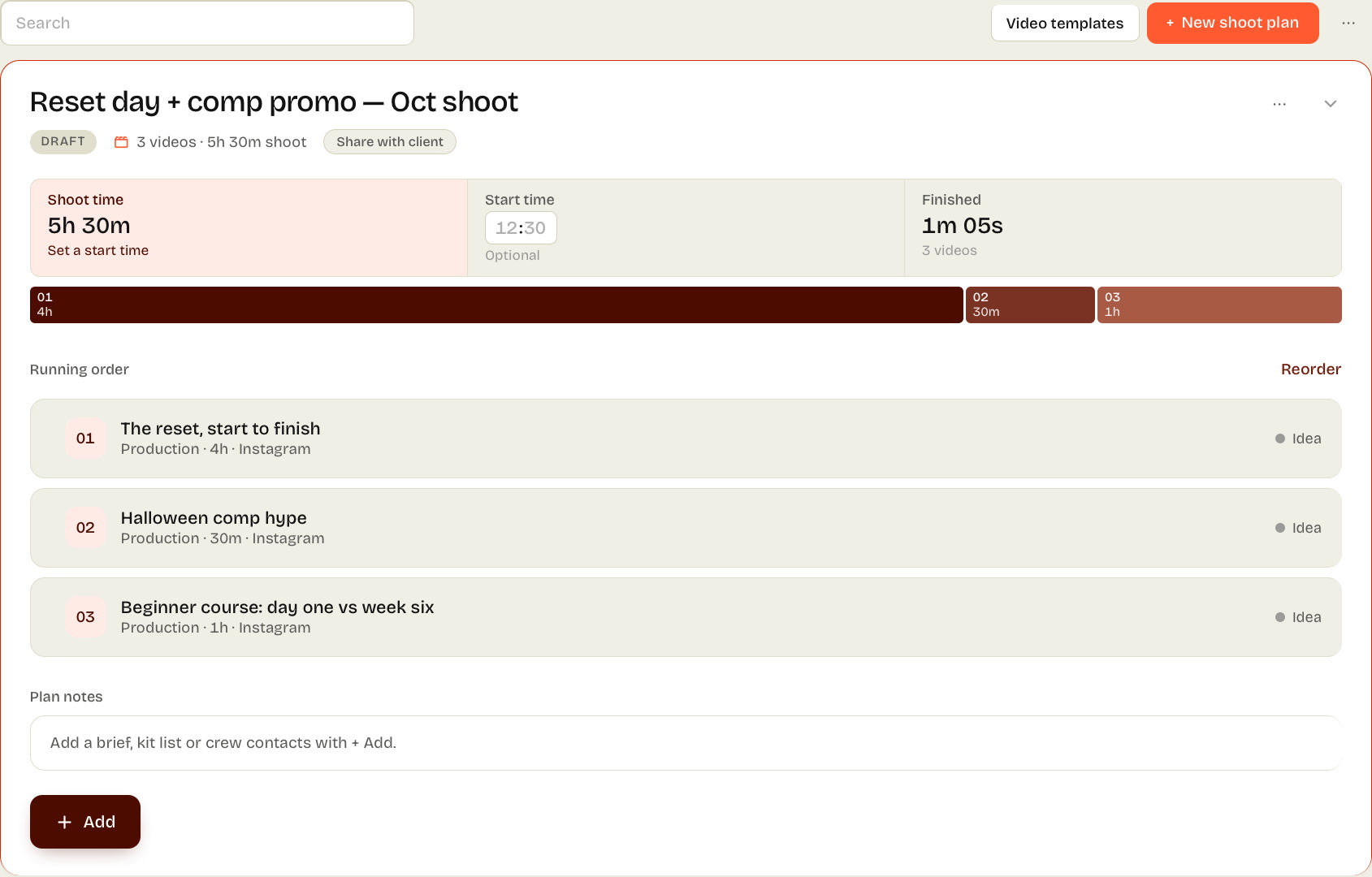
The card at the top adds up the shoot. Set a Start time and Koda gives each video a slot and works out when you wrap. Finished totals the finished length. Click Reorder, or drag a video, to change the order.
Status, dates and the calendar
The badge on each plan's bar sets the plan to Draft, Active or Complete. Plans with a shoot date show on the client's Calendar (under Daily) as a shoot item. Click it to jump back to the plan. Your client doesn't see these on their calendar. Plans whose date has passed collapse under Past shoots.
Share with your client
- Share with client on the plan bar shows the plan to client viewers under Shoot plans in their sidebar. They see only blocks with something written in them, and can leave comments on each video. If you've given them Can edit for shoot plans, they can fill in video titles, blocks and plan notes too.
- Team only on a plan note (or on a template block) hides it from the client, the view link and exports.
- From the plan's ⋯ menu, Copy view link copies a link anyone can open for 30 days, without logging in. Export opens the same page ready to print or save as a PDF. Allow pop-ups if nothing opens.
Each video has a Comments thread for your team and your client. Comments are labelled Team or Client.
Archive a plan
Choose Archive from the plan's ⋯ menu. To find it again, open the ⋯ menu at the top of Shoot plans and click View archived, where you can Restore it or Delete forever.
Still stuck? Email [email protected] and we'll help.