
Planning and publishing
Post by hand with reminders
How manual posts work: set a reminder instead of auto-publishing, get a push and an email at the time, then use the step-by-step checklist to post and mark it as posted.
Sometimes you want to post yourself: to add stickers to a story, pick a trending sound in the app, or post somewhere that isn't connected. A manual post stays on the calendar like any other, and Koda reminds you when it's due.
Set a manual post
- Open the post from Calendar (under Daily in the client sidebar).
- In the Schedule panel, switch from Auto-publish to Manual.
- Set the Date and Time.
- Click Schedule reminder.
The calendar shows the post as Manual post, and hovering over it shows when you'll be notified. A manual post doesn't need the client's accounts to be connected.
Stories with stickers are always manual, because Instagram's API can't place stickers. Adding a sticker switches the story to Manual for you, and Auto-publish is greyed out until you remove the stickers.
If the post goes through approval, your client approving it sets the reminder automatically, as long as the time is still in the future.
The reminder
At the scheduled time, the person who set the reminder gets:
- a push notification, "Time to post" (or "Story to post" for a story), on the Koda iPhone app
- an email saying the post is due, with a link to open Koda
Tapping the push opens the checklist for that post straight away. To get push notifications, sign in on the Koda iPhone app and allow notifications.
Once the reminder has gone out, the calendar shows the post as Ready to post.
Post it with the checklist
Open the post and click Post by hand in the footer. The checklist has one step per platform on the post. For each one it gives you:
- the media, with a button to download it (or save it to your phone's photos)
- the caption and hashtags for that platform, with a Copy button
- anything else to add by hand: stickers and what to put in them, collaborators, tagged people, location, audio, a first comment, TikTok's Who can view setting or YouTube's title, tags and visibility
On a phone, Open Instagram (or the relevant app) jumps straight into the app.
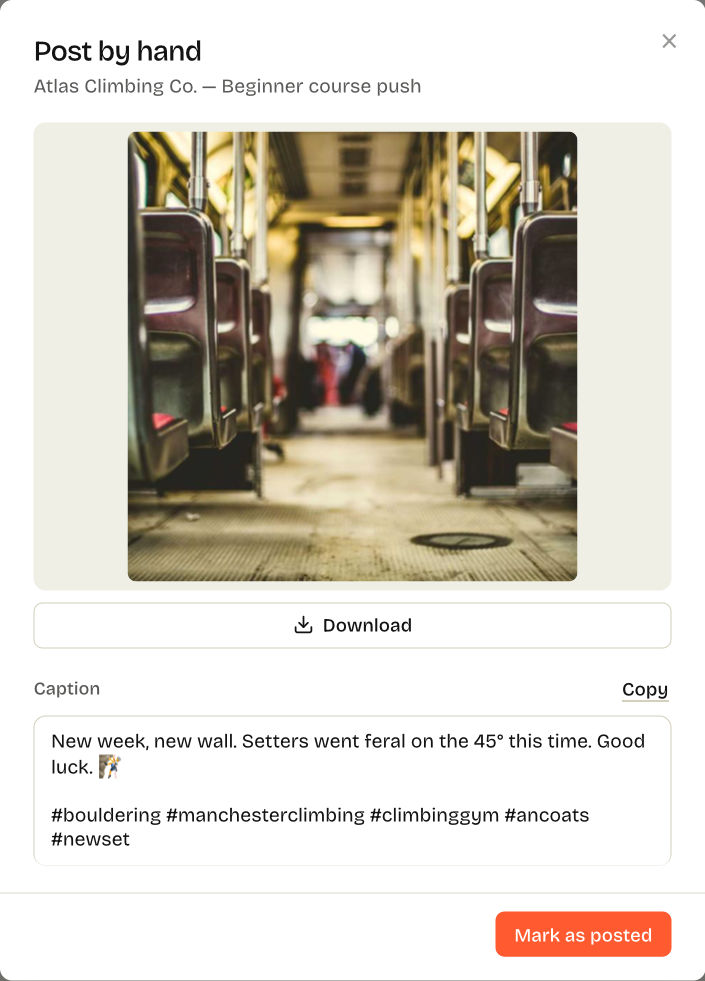
Click Done, next to move to the next platform. On the last one, click Mark as posted. The post then shows as Published on the calendar.
Cancel or change a reminder
To stop the reminder, choose Cancel reminder from the three-dot menu in the composer footer. The post goes back to a draft and nobody is notified. Moving the post to a new time resets the reminder for the new time.
To have Koda publish it after all, cancel the reminder, switch to Auto-publish and click Schedule.
Still stuck? Email [email protected] and we'll help.