
Client workspace
Client notifications
Set up the automatic emails Koda sends for each client, such as approval reminders, monthly reports and post-published alerts, and choose who receives them.
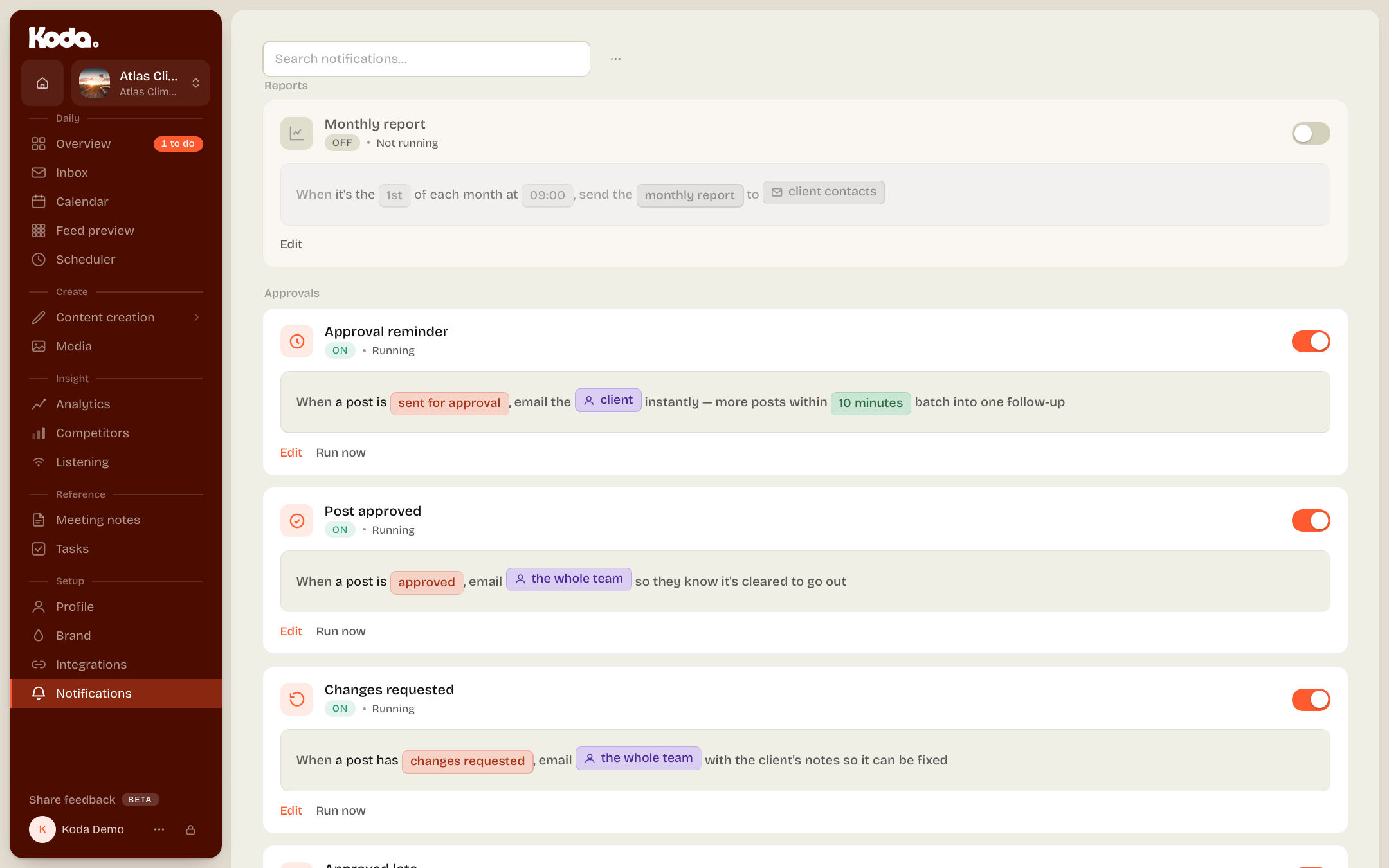
Notifications (under Setup in the client sidebar) is where you decide which automatic emails Koda sends for a client, when, and to whom. Every client gets the same set of rules; you switch each one on or off and pick its recipients.
The rules
Each card reads as a sentence, so you can see exactly what it does. They're grouped into sections:
| Rule | What it does | On by default |
|---|---|---|
| Monthly report | Emails the client report on a set day and time each month | No |
| Approval reminder | Emails the client when a post is sent for approval. More posts sent within 10 minutes go in one follow-up email | Yes |
| Post approved | Emails your team when a post is approved | Yes |
| Changes requested | Emails your team, with the client's notes, when a post is sent back | Yes |
| Approved late | Emails your team when a post is approved after its slot, so someone gives it a new time | Yes |
| Post published | Emails your team when a post goes live, so you can jump into the comments | No |
| Story due | Emails your team when a story that isn't set to auto-publish reaches its time, so someone posts it | No |
| Shoot plan ready | Emails the client viewer when a shoot plan is marked ready to review | No |
Use the toggle on a card to switch it on or off. Use Search notifications… to find a rule quickly.
Choose who gets each email
- Click Edit on a card.
- Under Action, pick who it goes to from the drop-down (the options are explained below).
- For Monthly report, also set the day of the month and the time.
- Click Save rule.
The recipient options are:
- client contacts: a list of email addresses you keep for this client.
- the client viewer (shown as the client (viewers + client email) on approval reminders): the people you've invited as client viewers.
- team members: tick specific teammates, or leave everyone unticked to email the whole team.
- a specific email: any single address.
To add contacts, choose client contacts, type a name (optional) and email, and click Add. Contacts are shared by all of this client's rules, and a client can have up to 20.
Monthly reports
The report only sends when the client has a connected account to report on, and Run now needs Instagram or Facebook connected. The day and time run on UTC. If you pick a day a month doesn't have (the 31st, say), it sends on that month's last day. See Client reports for what the report contains.
Test a rule with Run now
Run now sends the email straight away to the current recipients, which is handy for checking it looks right. It only appears on rules that are switched on, and you can use it up to 10 times an hour. Approved late has no Run now because it only fires when a late approval happens.
Copy rules between clients
From the ⋯ menu at the top of the tab:
- Apply all to… copies every rule (on/off, timing and recipients) from this client onto the clients you pick.
- Import from client replaces this client's rules with another client's.
Contacts and viewers stay each client's own, so "client contacts" on another client still means that client's contacts.
Who can change notifications
The tab is visible to admins and to staff with the Edit client info permission. It isn't shown to client viewers.
Phone alerts from the Koda iPhone app are separate: each person turns them on or off for themselves under iOS app notifications in their account settings. See the iPhone app.
Still stuck? Email [email protected] and we'll help.