
Content creation
Video templates for shoot plans
Choose which blocks every video in a shoot plan has, build your own templates and hide blocks from your client.
A video template decides the blocks a video in a shoot plan is made of, such as Idea, Script and Shot list. Templates belong to your organisation, so the same ones are available on every client.
Open the templates
In Content creation > Shoot plans (under Create in the client sidebar), click Video templates. You can also reach it from a plan's ⋯ menu, from Manage templates in the Add panel, or from the template link inside any video.
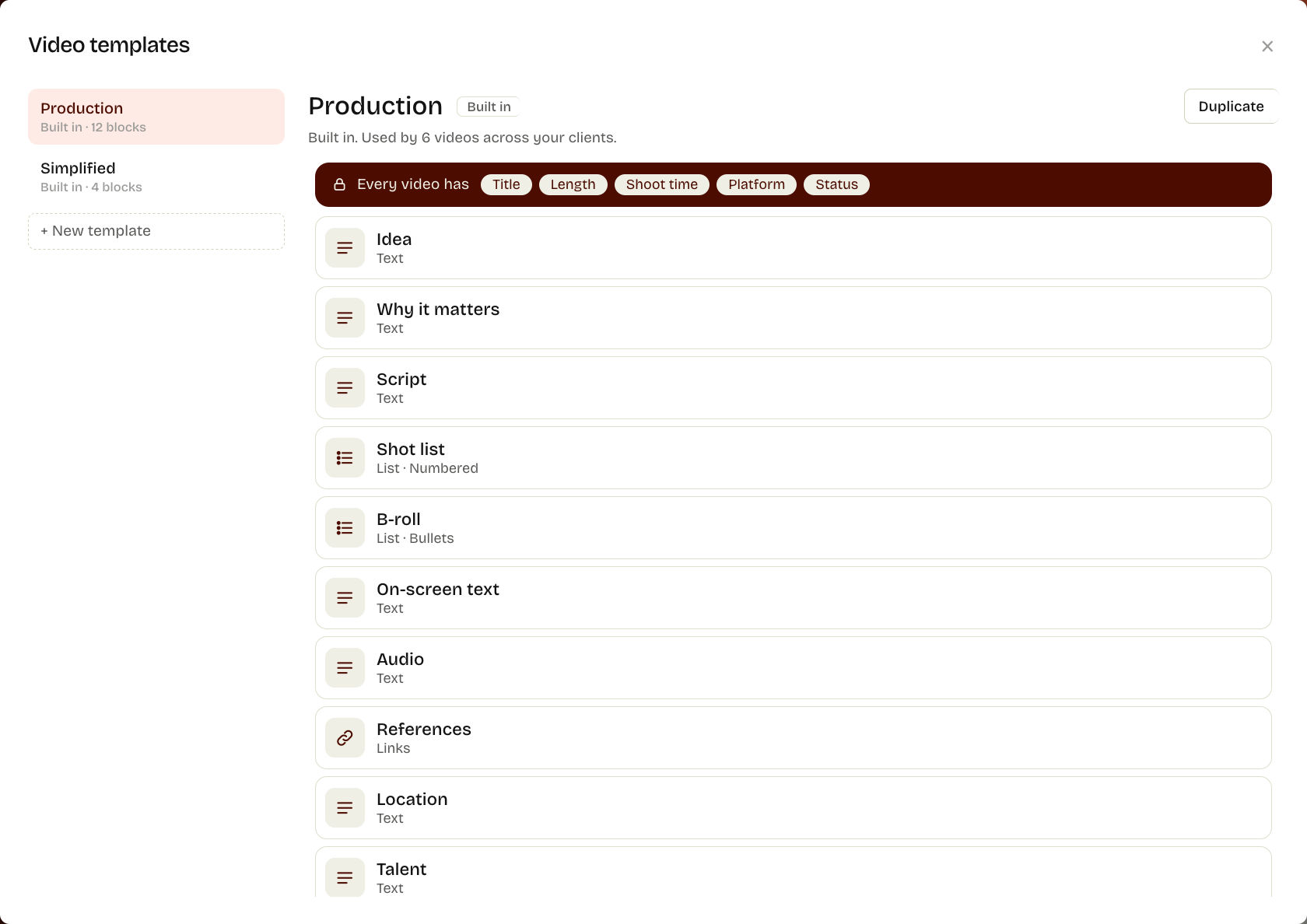
Built-in templates
Koda comes with two templates marked Built in:
| Template | Blocks |
|---|---|
| Production | Idea, Why it matters, Script, Shot list, B-roll, On-screen text, Audio, References, Location, Talent, Gear / setup, Caption |
| Simplified | Idea, Script, Shot list, Caption |
In the Add panel these appear as Production video and Simple video. Built-in templates can't be changed. Click Duplicate to edit to make your own copy.
Whatever the template, every video also has a Title, Length, Shoot time, Platform and Status.
Make your own
- Click + New template, or Duplicate an existing one.
- Click the name to rename it.
- Under Add a block, click a block type to add it at the end, or drag it into place: Text, List, Table, Links, Images or Files. The Ready made row adds common blocks in one click: Script, Shot list, B-roll, References, Kit and Caption.
- Rename blocks by clicking their names. Lists can be Numbered, Bullets or Checklist. Tables take columns with + Column.
- Reorder with the arrows or by dragging the grip.
Changes save as you go (the header shows Saving… then Saved), and you can click Save at any time.
Team only blocks
Switch on Team only for a block to keep it inside your team. It's hidden from client viewers, from the plan's view link and from exports. Use it for budgets, crew rates or internal notes.
Changing a template changes every video
A template is shared by every video that uses it, across all your clients. The window shows how many videos use it. If you remove a block, what was written in it stops showing on all those videos. If you delete a template, its videos switch to Production and anything written in the deleted template's own blocks no longer shows.
To move a single video to a different template, open the video and change its Template.
Still stuck? Email [email protected] and we'll help.