
Client workspace
Tasks
Organise a client's to-dos into lists, assign them to teammates with due dates, and attach files.
Tasks (under Reference in the client sidebar) keeps each client's to-dos in one place. Tasks are organised into lists, such as "Content", "Design" or "Admin", and each task can have an owner, a due date, notes and attachments.
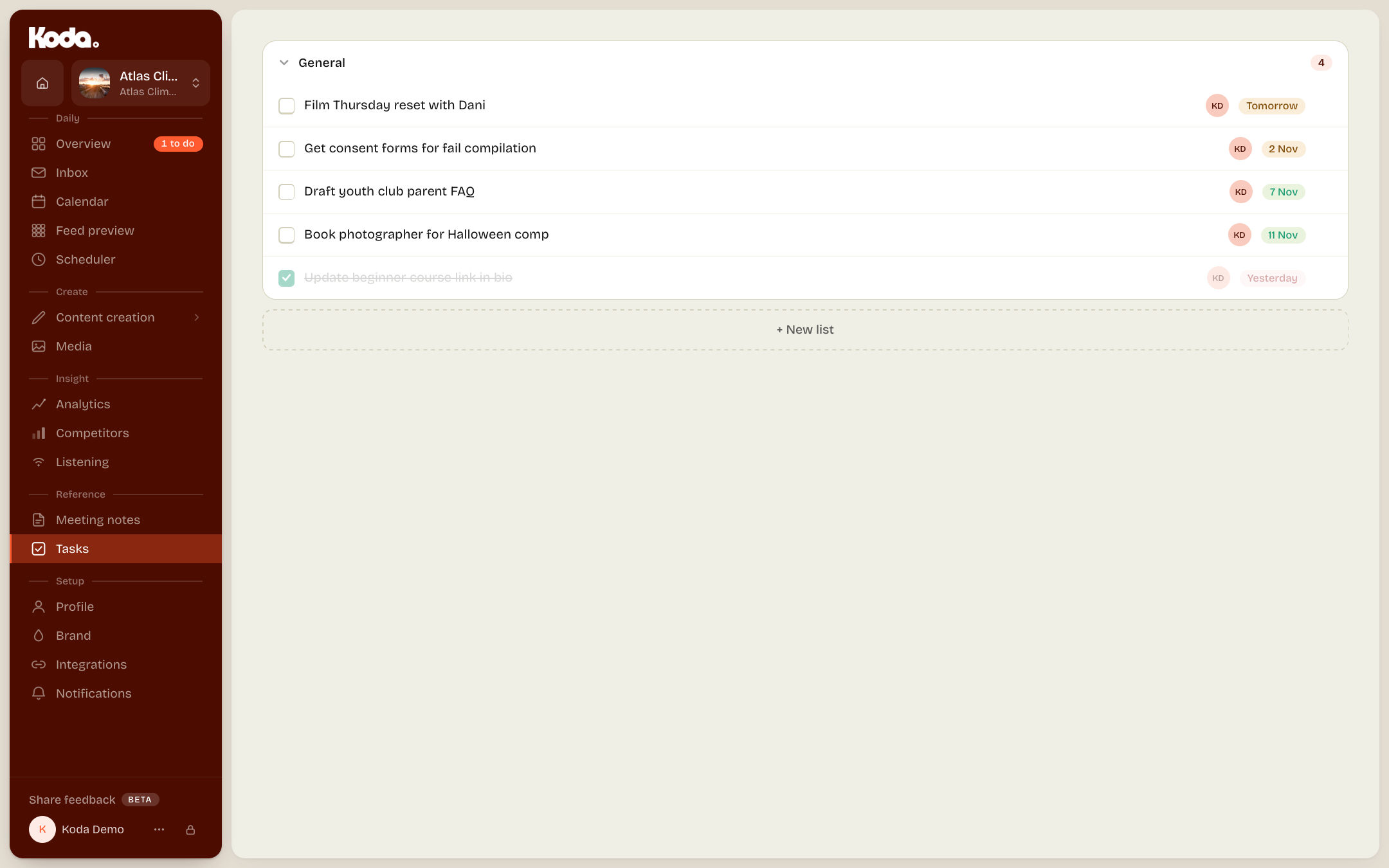
Create a list
- Open Tasks and click + New list (or + Create first list if the client has none yet).
- Type a List name and click Create list.
Each list has a ⋯ menu where you can Rename it, Group it (lists with the same group name sit together under a heading, which helps when a client has lots of lists) or Delete it. Deleting a list doesn't delete its tasks; they move to General.
Add a task
The quickest way is to type into Add a task… press Enter to save at the bottom of a list.
For more detail, click + Add task on the list and fill in:
- Task: what needs doing.
- Assigned to: anyone on your team who can see this client.
- Due date.
- List: move the task to another list.
- Notes: any extra details.
- Attachments: click Attach file to add PDFs, Word, Excel or PowerPoint files, or images. Each file can be up to 25 MB. Videos can't be attached to tasks.
Click Save task.
When you assign a task to someone else, Koda emails them with the task and its due date.
Work through tasks
- Tick the circle to mark a task done. Tick it again to reopen it.
- Click a task's name to open its details and edit them. Click the name again to close.
- Click the × at the end of a task's row to delete it, or use Delete task inside its details.
Due dates are colour-coded so you can spot what's urgent: overdue tasks show how many days late they are, and tasks due soon stand out from the rest. The count beside each list name is the number of open tasks.
Tasks on the overview
The Upcoming tasks widget on the client's Overview shows the next open tasks, soonest due first, with a You label on the ones assigned to you. You can tick tasks off there too. View all brings you back here.
Still stuck? Email [email protected] and we'll help.