
Content creation
Moodboards
Collect visual references for a client in boards: uploads, TikTok, Instagram and Pinterest links, and notes, then share them with the client or a shoot plan.
A moodboard keeps the references for a client in one place: photos and clips you upload, reels and pins you've saved, and notes for shoot day. Open Content creation > Moodboard (under Create in the client sidebar).
Boards
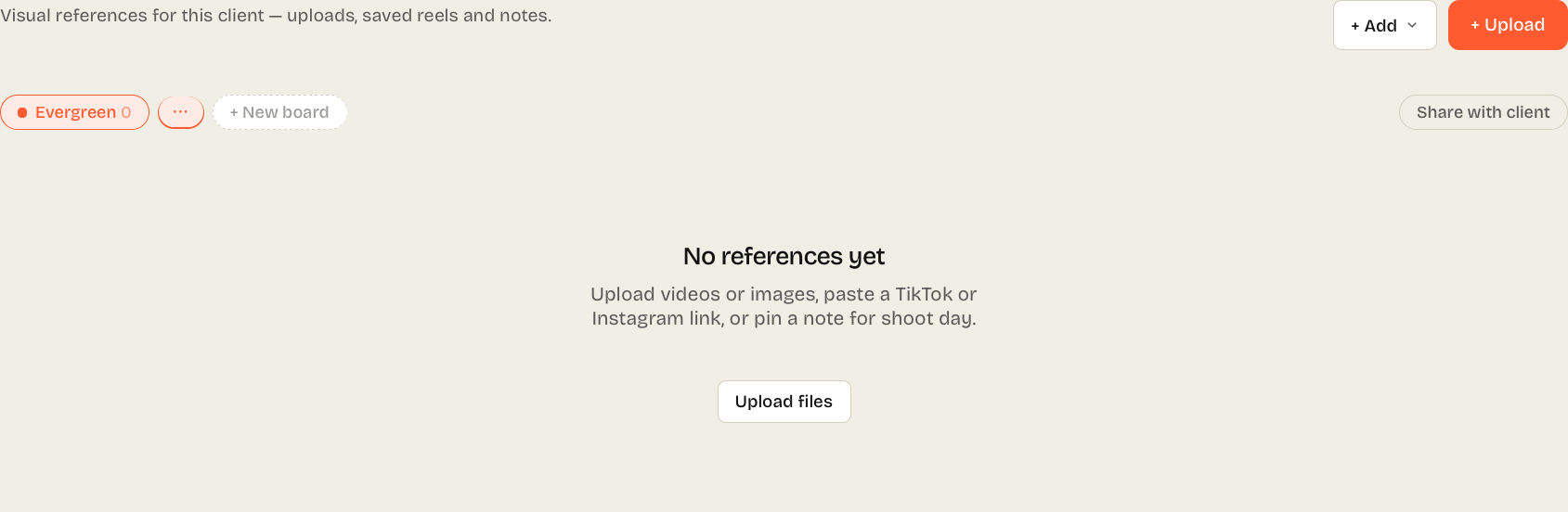
Each client starts with a board called Evergreen. Boards show as chips along the top with a count of what's in them. Click one to open it.
- + New board adds a board. A client can have up to 20.
- The ⋯ button next to the open board lets you Rename board, pick a colour, Link to shoot plan, Copy share link or Delete board (only when the client has more than one board).
Add references
- + Upload adds photos and videos (MP4 or MOV). You can pick several at once. Uploads count towards your organisation's storage.
- + Add > Paste link adds a TikTok, Instagram or Pinterest link. TikTok and Pinterest links get a thumbnail. Instagram links are saved without one for now.
- + Add > Add note pins a written note, such as "Morning window light only, hands in frame".
Under any upload or link, click Add a note to say what to take from it, for example "Copy the pacing, cuts every 1.5s". Drag tiles to reorder them, and click a tile to view it full size. Use the arrow keys to step through. A board holds up to 300 items.
Link a board to a shoot plan
From the board's ⋯ menu, choose Link to shoot plan and pick a plan. The board then shows at the top of that plan, with a few preview thumbnails, so whoever is filming can open it from the plan. To undo it, choose Unlink from shoot plan.
Inside a shoot plan you can also pull single references from a board into a Links block with From moodboard.
Share with your client
Boards are private to your team until you share them. There are two ways:
- Share with client (next to the board chips) shows that board to client viewers under Moodboard in their sidebar. They see it read-only, unless you've given them Can edit for moodboards, in which case they can add, edit, reorder and remove references. The board itself stays yours.
- Copy share link in the ⋯ menu copies a link anyone can open for 30 days, without logging in. It's a read-only view of that one board.
Sharing is per board, so you can keep a working board private and share a tidy one.
Still stuck? Email [email protected] and we'll help.