
Client approvals
Give your client a Koda login
Invite your client as a client viewer so they get their own login, a branded portal, approval emails and one place for every account they can see.
A client viewer is your client's own Koda login. They see a simple portal for their account, not your workspace: the posts you send for approval, plus anything else you choose to share.
Invite your client
- Open the client's Overview (under Daily in the client sidebar) and click Invite client.
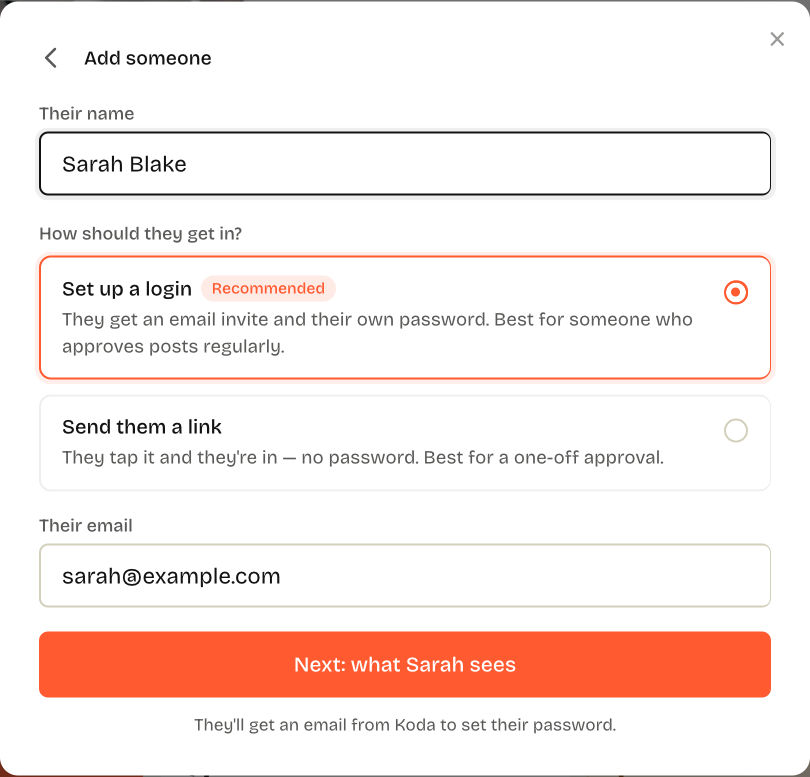
- Click Add someone and enter Their name.
- Under How should they get in?, keep Set up a login selected and enter Their email.
- Click Next: what [name] sees, choose what they can open, then click Send [name] an invite.
Admins can invite viewers to any client. Staff can invite them to clients they can see. Client viewers don't use a team seat.
What your client gets
Your client gets an email from Koda with an Accept invitation button. The invitation expires after 7 days. They set a password and land on Your accounts, which lists every client they can open.
Inside an account they start on Approvals. Their sidebar also has Home, a front page showing who it's from, how many posts are waiting on them and what's coming up. Any text card on the client's Overview that you set to Show to client appears there too.
The portal carries your agency's logo and colours from Report branding in your organisation Settings.
Approval emails reach a viewer once they've accepted the invite. If they use the Koda iOS app, they also get push notifications.
Manage who has access
Click Invite client to see everyone under Has access. Each person shows as Login or Link, with when they were last active. Open the ⋯ menu next to someone to:
- Edit what [name] sees to change their portal
- Resend invite if they haven't joined yet
- Remove [name]'s access to this client
Removing access only affects this client. Their login keeps working for any other accounts they have.
Clients who work with several agencies
A client viewer can be a viewer for accounts at more than one agency, all under one login. Your accounts lists each one with the agency's name underneath.
If you invite someone who already has a Koda login:
- An existing client viewer gets an email saying they've been given access. The new account waits under Pending invites on Your accounts until they click Accept.
- Someone on another agency's team gets access straight away. The client appears under Shared with me in their own sidebar.
- Someone already on your own team can't be added as a viewer. They already see your clients.
Limits
Your organisation can send up to 30 invites a day, counting viewer and team invites together.
Next steps
Still stuck? Email [email protected] and we'll help.