
Client workspace
The client profile
How to fill in a client's details on the Profile tab, including the email that receives approval requests, their timezone and their status.
Profile (under Setup in the client sidebar) holds the basic facts about a client: who they are, how to reach them and when you started working together. Brand details such as tone of voice and audience live separately on the Brand tab.
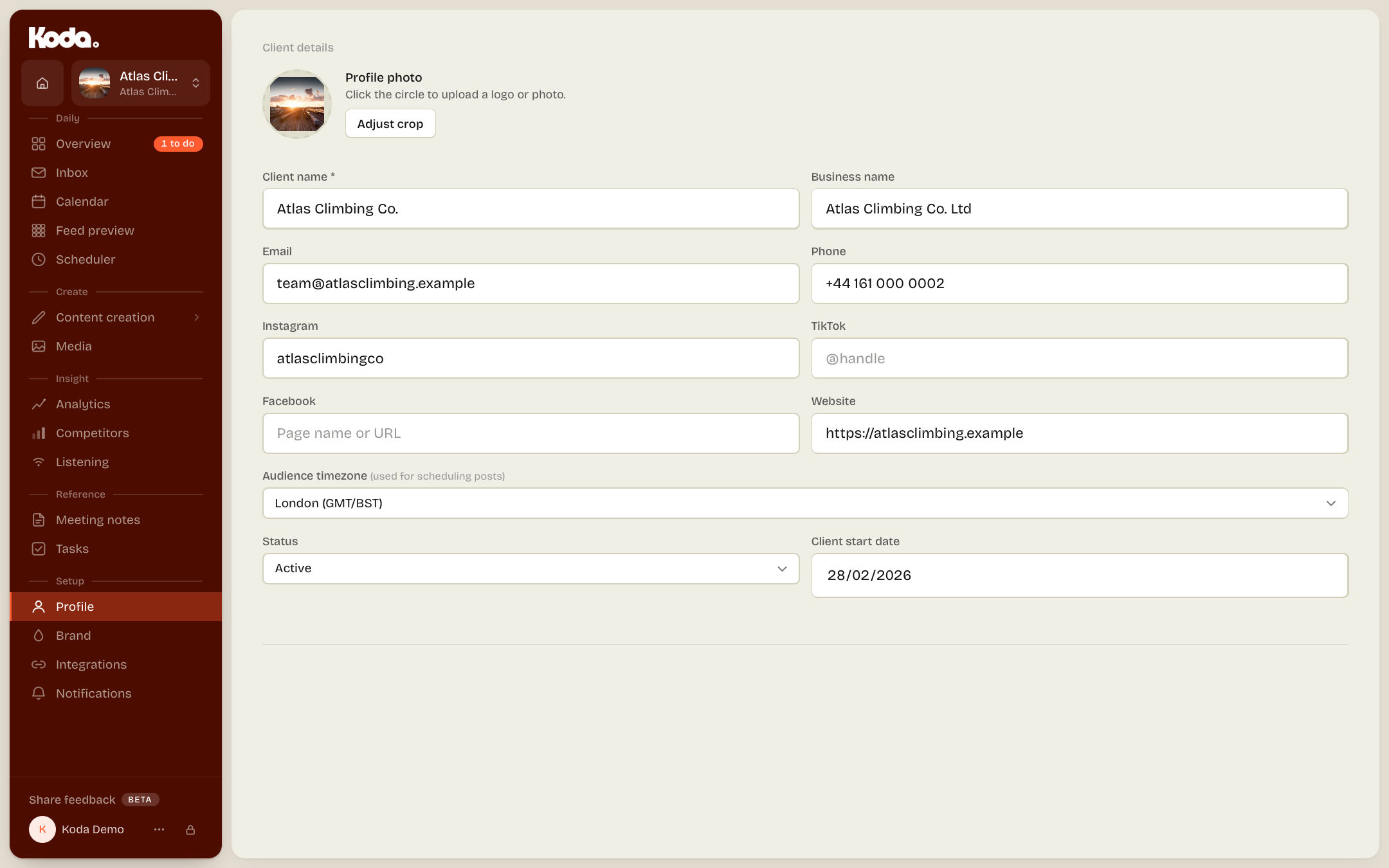
Fill in the details
Open Profile and work through the Client details form:
- Profile photo: click the circle to upload a logo or photo, then crop it. Adjust crop lets you re-crop later.
- Client name (required) and Business name.
- Email and Phone.
- Instagram, TikTok, Facebook and Website.
- Audience timezone: the timezone Koda uses when scheduling this client's posts. If you leave it on Use my browser's timezone, your own timezone is used.
- Status: Active, Prospect, Paused or Churned. It shows as a badge on the client card and the overview.
- Client start date: shown on the overview as "since" that month.
Typing the handles here doesn't connect the accounts. To publish and pull analytics, connect them on Integrations. See Connect accounts.
Saving
There's no save button. Koda saves a moment after you stop typing, and the top corner shows Saving… then Saved. If the name is empty it won't save until you add one. If you see Save failed, check your connection and type again.
The client's email and approvals
The Email field matters more than it looks. When you send a post for approval, Koda emails "the client" by default, which means:
- any client viewers you've invited, plus
- any contacts you've added on the Notifications tab, plus
- the email on this profile.
So filling in the profile email is enough for approval requests to reach your client, even before you invite them as a viewer. If none of these exist, Koda warns you that nobody was emailed.
To add more people (a marketing manager and an owner, say), add them as contacts on Notifications. Contacts are shared across all of that client's notification rules.
Who can edit
Admins can always edit profiles. Staff need the Edit client info permission, which is on by default; without it the fields are read-only. Deleting a client needs the separate Delete clients permission. See Delete a client.
Still stuck? Email [email protected] and we'll help.