
Client approvals
What your client can see and edit
Control what each client viewer or approval link can open, from approvals only to editing captions, shoot plans and moodboards, and hide individual drafts with the Private/Public lock.
Every person you give access to has their own portal: the set of tabs they can open for that client. You choose it when you add them and can change it any time.
Where to set it
Click Invite client on the client's Overview. You set the portal:
- when you add someone, on the What [name] sees step
- for someone who already has access, from Edit what [name] sees in their ⋯ menu
- for everyone you add from now on, under New people start with. Changing this leaves existing people as they are.
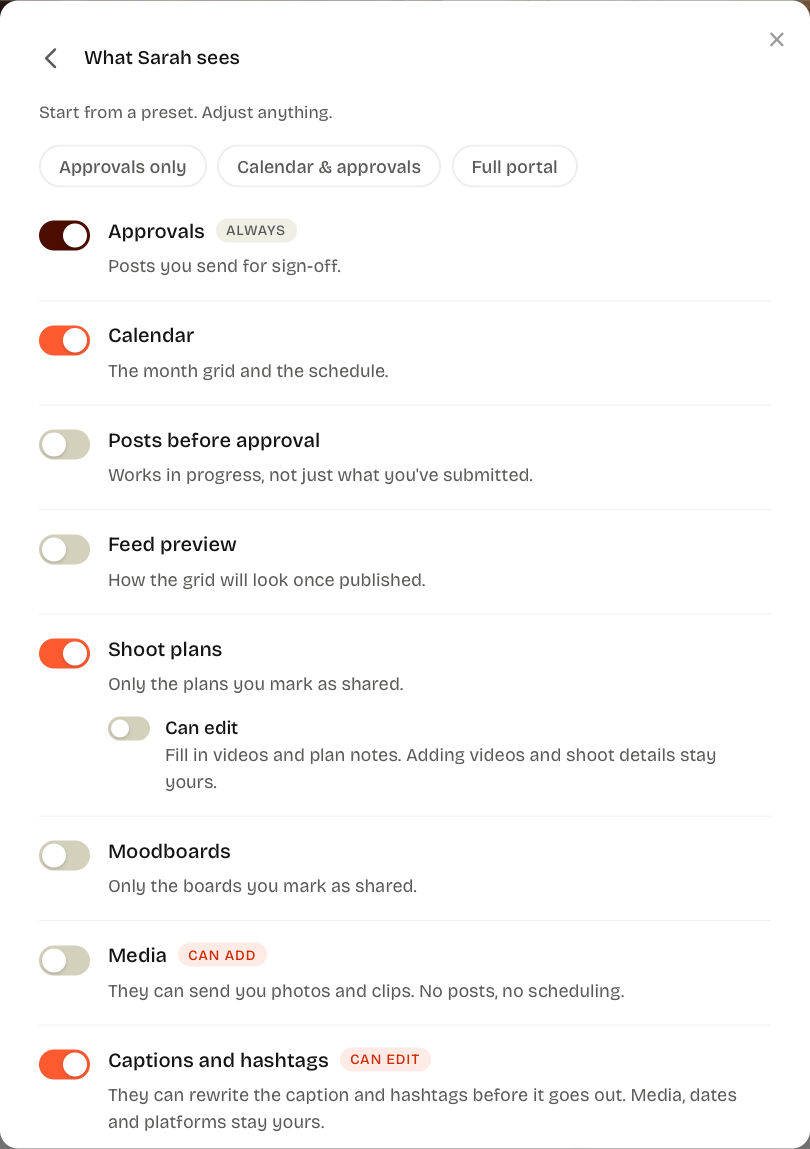
Presets
Start from a preset, then adjust any switch.
| Preset | What it opens |
|---|---|
| Approvals only | Just the posts you send for sign-off |
| Calendar & approvals | Approvals, Calendar and Shoot plans |
| Full portal | Every switch below, including editing |
The switches
| Switch | What it does |
|---|---|
| Approvals | Posts you send for sign-off. Always on. |
| Calendar | The month grid and the schedule. |
| Posts before approval | Works in progress, not just what you've submitted. |
| Feed preview | How the grid will look once published. |
| Shoot plans | Only the plans you mark as shared. |
| Moodboards | Only the boards you mark as shared. |
| Media | They can send you photos and clips. No posts, no scheduling. |
| Captions and hashtags | They can rewrite the caption and hashtags before it goes out. |
Shoot plans and Moodboards each have a Can edit switch underneath when they're on.
What editing allows
- Captions and hashtags: an Edit link appears next to the caption in the post view. Your client can change the caption and hashtags for the platform tab they're on, then click Save changes. Media, dates and platforms stay yours, and nothing can be edited once the post is out.
- Shoot plans, Can edit: they can fill in videos and plan notes. Adding videos and shoot details stay yours.
- Moodboards, Can edit: they can add, edit, reorder and remove references. The boards themselves stay yours.
- Media: they get a Media tab with + Upload. They only see what they've sent. Their files land in a From the client folder in your media library, labelled with who sent them, and count towards your storage.
Share a plan or board with the Share with client button on it. See Shoot plans and Moodboards.
Hide or show a single draft
If Posts before approval is on, your client can see drafts. To control this per post, use the lock icon at the top of the composer, next to the eye. It only appears once the client has a viewer or an approval link.
- Public: your client can see this draft, but can't approve it until you send it.
- Private: hidden from your client until you send it for approval.
Once a post has been sent for approval, scheduled or posted, your client can see it either way, so the lock stays open.
Next steps
Still stuck? Email [email protected] and we'll help.